February 13, 2026
Storyboard for UX design
Organize ideas and experiences
Eugene,
UX/UI Designer

Communicating vision early with storyboards
When someone says they’re “storyboarding,” most think of rough sketches used in filmmaking and animation. However, storyboards have a place in UX design—and UX designers are the storytellers. Their work guides the user’s journey to deliver the best possible experience.
Designers use storyboards to organize ideas and experiences through sequential illustrations, images, or screens. Storyboards also communicate vision in a project’s early stages.
Read on to learn about:
How to make a storyboard with UX goals in mind.
Important elements of a storyboard.
Differences between storyboards and other visualizations.
Common use cases for UX storyboards.
What is a UX storyboard
Get early input, identify issues, and unify vision
UX storyboards are early sketches of a user’s journey through a specific flow. They show how users navigate your product, what happens when they use it, or both.
For example, a UX storyboard may show how a new user signs up for an account upgrade. It would show each process step—from the homepage to the confirmation page.
UX storyboards help teams:
Get early input.
These visuals allow teams to gather stakeholder feedback before solidifying design decisions. Alignment in the beginning minimizes edits in later feedback rounds.
Identify issues.
Storyboarding can uncover problems for teams to address when creating wireframes or user journey maps. These can include missing steps, overly complicated processes, and unclear instructions.
Unify vision.
A storyboard also serves as a reference point during wireframing and later stages. It helps teams understand a feature’s purpose and goals throughout a project.


Step 1: Set the goal and brainstorm ideas
Define the storyboard’s purpose by determining its content, length, and time required to complete it. Use existing design research to identify your team’s challenges and find potential storyboard subjects.
Consider using these UX research sources:
Refer to design briefs and mood boards. These design artifacts recap teamwide goals, expectations, and original design inspiration. They can remind you of the original purpose for the flow or feature.
Conduct usability tests. Test results may identify potential problem areas to focus on in the storyboard. Processes where users get frustrated, confused, or give up are all great choices for UX storyboards.
Hold interviews, focus groups, and surveys. Feedback from these sources helps teams understand what users don’t like about specific features or processes. This information also sparks ideas for potential solutions.
Review engagement metrics and other quantitative data. Data like bounce rates, time on task, and conversions inform what issues to prioritize. For instance, a team may create a storyboard about checkout experience rather than their profile editing page.
After reviewing the data, establish whether the storyboard aims to gather early feedback, visualize user research for stakeholders, or support brainstorming sessions. These determine the fidelity level and design you’ll choose in the next step.
Research may uncover several issues for your storyboard to tackle. To avoid a complex story, focus on one goal for this storyboard. Create additional storyboards if needed.
Step 2: Pick the fidelity level and design
The right fidelity level communicates the story without adding distracting details. For example, teams may use low-fidelity storyboards to communicate ideas during brainstorming. These storyboards use stick figures, simple shapes, and minimal colours. Basic visuals keep teams focused on narrowing down ideas rather than getting sidetracked by design choices.
Mid- or high-fidelity storyboards are helpful in presenting to decision-makers. These storyboards often include more detailed product or website layouts to help the audience understand the scene. Use screenshots and previous design artifacts to share context without starting from scratch.
This stage is also a good time to choose the panels’ aspect ratios. Horizontal panels work well for full-body panels focusing on the user’s feelings and actions or website projects highlighting desktop design. Vertical panels are a good choice for depicting mobile experiences.
Deciding between paper vs. online storyboards
You may consider working on paper if you’re in the early stages of a project. Physical storyboards are quick and easy to create. They work well for in-person meetings and hands-on team members. For example, sketching storyboard panels on sticky notes makes it easy for anyone to adjust—just move the order or quickly add notes throughout the meeting.
However, hybrid or remote teams can’t enjoy those benefits. Digital storyboards are more legible, easier to edit, and better built for sharing than physical boards. They’re also more accessible for in-person, hybrid, and remote teams. Tools like FigJam help teams create storyboards, gather feedback, and iterate in one place.
Step 3: Develop the protagonist and the scenario
Identify the story’s hero by stating their job, goal, challenges, and how your product or website helps them. For instance, is your main character a budding entrepreneur who needs an app to track business expenses? This person is probably overwhelmed and wants an app that’s easy and quick to use. Your storyboard can focus on time-saving features to show how your app helps relieve stress. Build off existing user personas and research to streamline this step.
UX storyboards typically feature one protagonist. If you have multiple personas, plan on creating tailored storyboards for each.
Next, develop the hero’s scenario—a one-sentence description of the hero’s story. Include relevant external factors and their impact on your hero’s app or product experience. For example: “A user with low vision uses the app’s zoom feature while checking out.”
Step 4: Draft the story
Before you begin drafting, go through the process to familiarize yourself with each step. Then, write down that process to start building the story.
Consider the goal, issue, solution, and how the user will use your website or product to solve their problem.
The story’s first step depends on your storyboard’s focus. If your storyboard mainly includes product layouts and user interactions, start with the user’s first interaction. If your storyboard is centered around the user’s journey and feelings, start the story with what they’re doing before using your product or website.
Interactions to feature in your UX storyboard include app notifications, navigating to different screens, submitting information, and selecting dropdown menus.
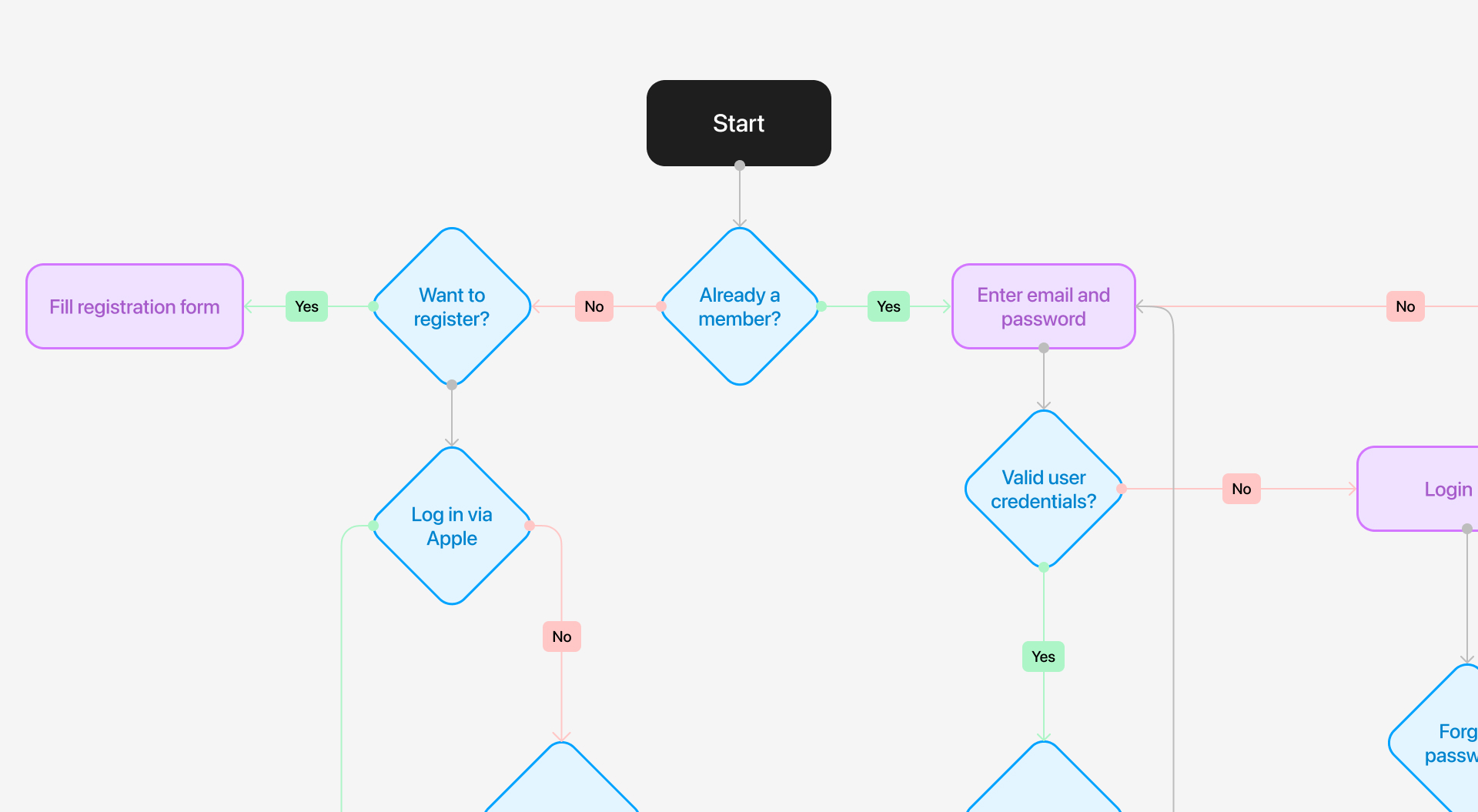
Pro tip: Start by outlining the user journey in a flow format using a collaborative whiteboard tool. Writing your story based on this flow will help you create a clearer UX storyboard.
Include other details to illustrate the user’s experience—describe the user’s changing emotions or add real quotes from user research to help your team empathize with users.
When you’ve finalized the order, note potential visuals for each panel to prepare for the last storyboarding step.
Step 5: Add visuals and text
Fill out each storyboard panel one at a time. Add a title and a number at the top, write the caption, sketch the panel’s main imagery, and add arrows and annotations to communicate flow between panels. Use extra call-outs for questions and context as needed.
Remember, the goal is to show how customers will engage with your product, not visual polish. Use basic shapes and simple explanations at this stage—don’t focus on colour, font choices, or perfecting the layout. Elements will likely change as stakeholders share feedback and features or goals change.
Review and revise
Look for panels that don’t flow well, feel too busy, or are confusing. Add panels for missing steps and remove ones that are redundant or unnecessary.
Take another look at the hero’s journey as well. Is it clear how they reached their happy ending? More importantly, is it clear how the app or product helped solve their problem?
While making adjustments, note changes that impact other project stages. For example, your team may use storyboards to prioritize fixes for the next product update. If your team shared lots of feedback for a specific feature, this is a sign that users are also struggling. Your team can then prepare a usability test for that pain point to find a solution.
Storyboard examples
Here are two examples of UX storyboards to help your next project.
Example 1: Searching for desired artist community
Let’s say your team is designing a phone application that connects music artist fans with other fans. The storyboard’s goal is to show how users find an artist community.

Scenario: User is searching for their desired artist community.
Persona: New user, Lily
Steps:
1. User opens the app and lands on the home screen.
2. User opens the menu to find and select the “Artist Selection” tab.
3. User lands on the “Artist Selection” page and sees the option to either browse alphabetically, by genre, or to search.
4. User opts to use the search function.
5. User lands on the artist’s page.
Example 2: Improving the online order form
As another example, imagine that you’re improving the online order form on the website of a local bakery. Customers complain that it’s confusing, so they call the shop instead.
You find the customer’s main pain points after conducting user research. Based on that research, this storyboard aims to present an improved design for customers.